

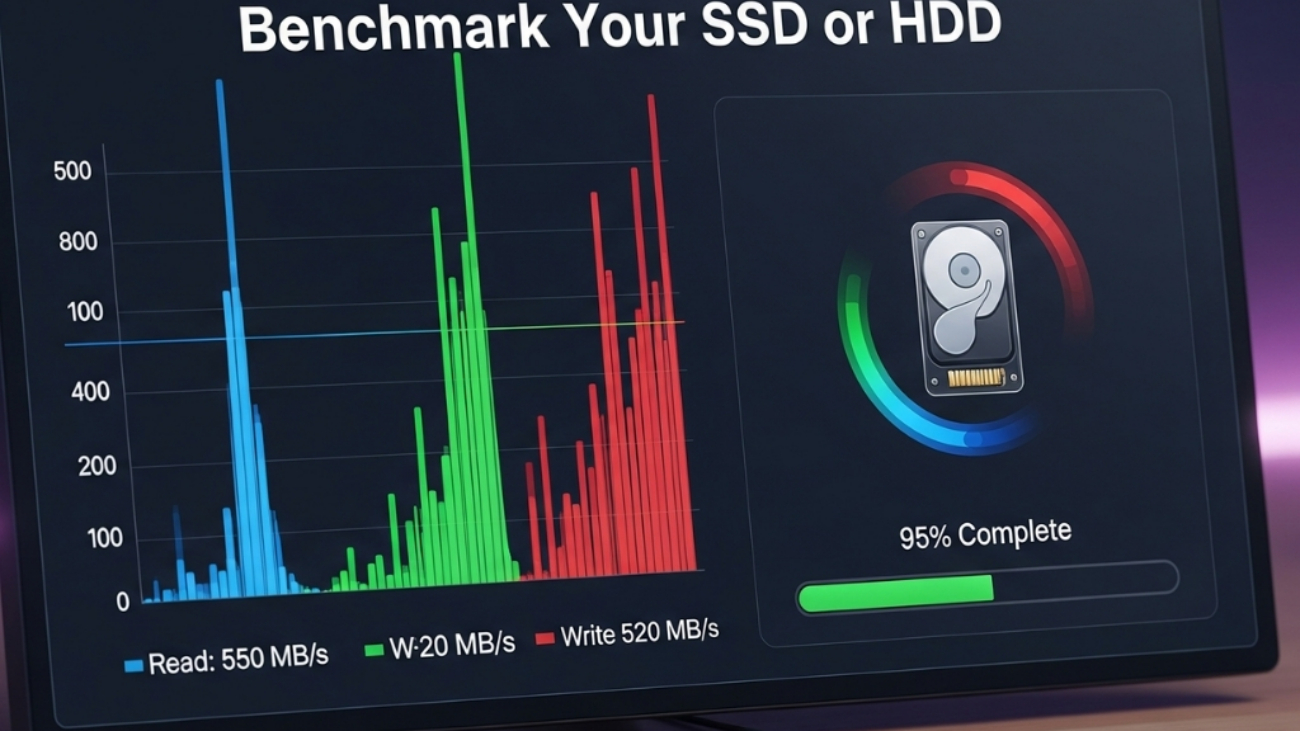
Upgrading to Windows 11 promises faster performance, but many users still wonder: Is my SSD or HDD performing as well as it should? Storage drives are the backbone of a smooth computing experience, yet their true speed often goes unnoticed until something slows down.
The problem is clear: without testing, you don’t know if your drive is healthy, underperforming, or even failing.
The good news? Benchmarking your SSD or HDD on Windows 11 takes just a few minutes, and it can reveal vital insights—like read/write speeds, latency, and potential bottlenecks.
By the end of this guide, you’ll not only know how to benchmark your drive but also why it matters and what to do with the results.
Summary Table: How to Benchmark Your SSD or HDD on Windows 11
| Step | Tool/Method | Purpose | Best For |
|---|---|---|---|
| 1 | Windows Built-in Tool (WinSAT) | Quick drive assessment | Everyday users |
| 2 | CrystalDiskMark | Standard benchmarking | Most accurate speed test |
| 3 | ATTO Disk Benchmark | Detailed read/write performance | Professionals |
| 4 | AS SSD Benchmark | SSD-specific testing | Identifying latency issues |
| 5 | Manufacturer Tools (Samsung Magician, WD Dashboard, etc.) | Health + firmware updates | Brand-specific drives |
| 6 | Command Line (PowerShell) | Lightweight checks | Tech-savvy users |
What Does It Mean to Benchmark Your SSD or HDD?
Benchmarking is the process of running specialized tests that measure drive speed, latency, and stability. On Windows 11, this means:
-
Sequential speed: Large file transfers (e.g., movies, backups).
-
Random speed: Small files, app launches, system boot.
-
IOPS (Input/Output Operations per Second): Multitasking capability.
-
Latency: How quickly your drive responds to requests.
Without benchmarking, you can’t be sure whether your SSD is giving you lightning-fast boot times or if your HDD is slowing down your workflow.
Since understanding the “what” sets the stage, let’s now look at the “how”.
How to Benchmark Your SSD or HDD on Windows 11 Using Built-in Tools
Windows 11 includes a simple way to test your drives using WinSAT (Windows System Assessment Tool).
Steps:
-
Press Windows + S, type cmd, and run as administrator.
-
Enter:
-
Wait for the test to complete.
The results will display sequential and random read/write speeds.
This method is quick, but lacks detailed analysis. For deeper insights, third-party tools shine.
And that brings us to the most popular choice: CrystalDiskMark.
How to Benchmark Your Drive with CrystalDiskMark
CrystalDiskMark is the go-to tool for benchmarking drives on Windows 11.
Why Use It?
-
Free and lightweight.
-
Trusted by enthusiasts and professionals.
-
Provides detailed sequential and random performance metrics.
Steps:
-
Download CrystalDiskMark from the official site.
-
Install and launch it.
-
Select your drive.
-
Click All to run the test.
Results will show:
-
Seq Q32T1: Sequential performance.
-
4KiB Q8T8: Small random operations.
-
Read vs Write speeds.
If you want to compare your drive’s performance against manufacturer specs, this is the easiest tool.
Still, some professionals prefer even more granular testing.
Other Popular SSD & HDD Benchmarking Tools
Beyond CrystalDiskMark, several specialized tools provide unique advantages:
ATTO Disk Benchmark
-
Industry-standard for professionals.
-
Tests different file sizes.
-
Ideal for enterprise or server drives.
AS SSD Benchmark
-
Designed specifically for SSDs.
-
Measures access time and responsiveness.
-
Useful for diagnosing hidden slowdowns.
Manufacturer Tools
-
Samsung Magician, WD Dashboard, Seagate SeaTools, etc.
-
Offer benchmarking + firmware updates.
-
Best for ensuring brand-optimized performance.
Now that we’ve explored tools, let’s look at what the numbers actually mean.
How to Interpret SSD and HDD Benchmark Results
Running a test is one thing, but understanding results is key:
-
HDD average speeds: 80–160 MB/s.
-
SATA SSD speeds: 400–600 MB/s.
-
NVMe SSD speeds: 1,500–7,000 MB/s.
If your numbers fall drastically below these ranges, it could mean:
-
Old firmware.
-
Misconfigured settings (e.g., AHCI mode disabled).
-
Drive health issues.
At this point, it’s important to connect benchmarking with drive health monitoring.
Why Benchmarking Helps Identify Problems Early
Benchmarking isn’t just about bragging rights—it’s a preventive measure.
It can reveal:
-
Fragmentation (mostly HDDs).
-
Thermal throttling (common in NVMe SSDs).
-
Firmware bugs.
-
Failing drives.
By pairing benchmarks with SMART health data, you ensure your storage is both fast and reliable.
So, how do you run these checks regularly?
Best Practices for Benchmarking Drives on Windows 11
To ensure accurate results:
-
Close all background apps before testing.
-
Run multiple tests for consistency.
-
Benchmark under similar conditions each time.
-
Check temperatures during stress tests.
Benchmarking should be part of routine PC maintenance—just like updates and backups.
Conclusion
Benchmarking your SSD or HDD on Windows 11 is the fastest way to confirm whether your storage drives are delivering the speed and reliability you expect. From WinSAT to CrystalDiskMark and professional-grade tools, you have everything you need to measure, interpret, and act on performance results.
Key Takeaways:
-
Benchmarking reveals speed, latency, and health issues.
-
Use built-in tools for quick checks and third-party apps for deeper insights.
-
Always compare results against manufacturer specs.
-
Regular benchmarking helps prevent data loss and ensures peak performance.
Topic Suggestions
- Bug Affecting SSDs and HDDs
-
Best Free Tools to Benchmark Storage Devices on Windows 11
-
How to Check SSD Health and Lifespan with SMART Monitoring
-
NVMe vs SATA SSD: Which is Better for Windows 11?
-
How to Fix Slow SSD Performance on Windows 11
-
The Ultimate Guide to Upgrading HDD to SSD in Windows 11
-
Common SSD Problems and How to Troubleshoot Them
-
How to Optimize SSD Settings for Maximum Speed on Windows 11
FAQs
What is the best SSD benchmark tool for Windows 11?
CrystalDiskMark is the most widely used and reliable free tool for accurate SSD benchmarking.
Can benchmarking damage my SSD?
No, but excessive benchmarking may slightly increase wear. Running tests occasionally is safe.
How do I know if my SSD is underperforming?
Compare benchmark results with manufacturer specifications. Significant drops may indicate health issues.
Is it worth benchmarking an HDD on Windows 11?
Yes. Even older drives benefit from performance checks, especially if you notice slow boot times or file transfers.
How often should I benchmark my drives?
Every 3–6 months, or whenever you suspect performance problems.

Leave A Comment